Guide
PDF form field types, and which one to use
Updated 11 October 2026
Short answer: the PDF standard has four kinds of field: text, button (checkboxes, radio buttons and push buttons), choice (dropdowns and lists) and signature. Dates and numbers are text fields with a small formatting script. Use a text field for anything typed, a checkbox for independent yes/no items, radio buttons when only one option may be picked, and a signature field only when people will sign digitally.
The types, one by one
| Field | Inside the PDF | Use it for | Watch out for |
|---|---|---|---|
| Text | /Tx | Names, addresses, IDs, anything typed on one line | Make it as wide as the printed line; a too-short field scrolls |
| Multiline text | /Tx with the Multiline flag | Notes, "describe the problem", allergies | Auto font size keeps long answers inside the box |
| Checkbox | /Btn | Each option that can be ticked on its own | Two checkboxes with the same name tick together |
| Radio buttons | /Btn with the Radio flag, one field with several widgets | Pick exactly one: Yes or No, a size | All buttons in a group share one name |
| Dropdown or list | /Ch (combo box or list box) | A long fixed list, like countries | Hard to fill on paper if the form is also printed |
| Date | /Tx with AFDate_FormatEx and AFDate_KeystrokeEx scripts | Birth dates, start dates | Readers that don't run PDF JavaScript treat it as plain text |
| Number | /Tx with AFNumber_Format scripts | Amounts, quantities | Same: formatting needs a reader that runs the script |
| Signature | /Sig | Digital signatures with a certificate | Needs a reader with digital signature support, such as Acrobat Reader. For a typed name, use a text field |
Settings that matter
Names
The name is how the field is identified when data is exported or the form is filled by software. Fields that share a name share one value, which is how radio groups work and also how two checkboxes end up ticking together by accident. A dot in a name creates a hierarchy (address.city is a child of address), so plain words with spaces or underscores are safer.
Required
The Required flag tells the reader the field must be filled. Acrobat Reader marks required fields and some readers warn before submitting, but nothing stops someone saving the file with it empty. It's a hint to people, not validation.
Font size
A size of 0 means automatic: the text shrinks to fit the box. That's the best choice for most fields. A fixed size reads better when every answer is short and the boxes are the same height.
Comb fields
Forms with one box per character (account numbers, postcodes) use a text field with the Comb flag and a maximum length, so each character lands in its own box.
What Fillable makes
Fillable writes text, multiline, checkbox, date, number and signature fields, with names taken from the labels it reads, a Required toggle and automatic or fixed font size. It doesn't make radio button groups or dropdowns; if your form needs those, LibreOffice or Acrobat will do it. Page 1 is free to download, so you can check how the fields behave in your reader before paying $4 for the whole form.
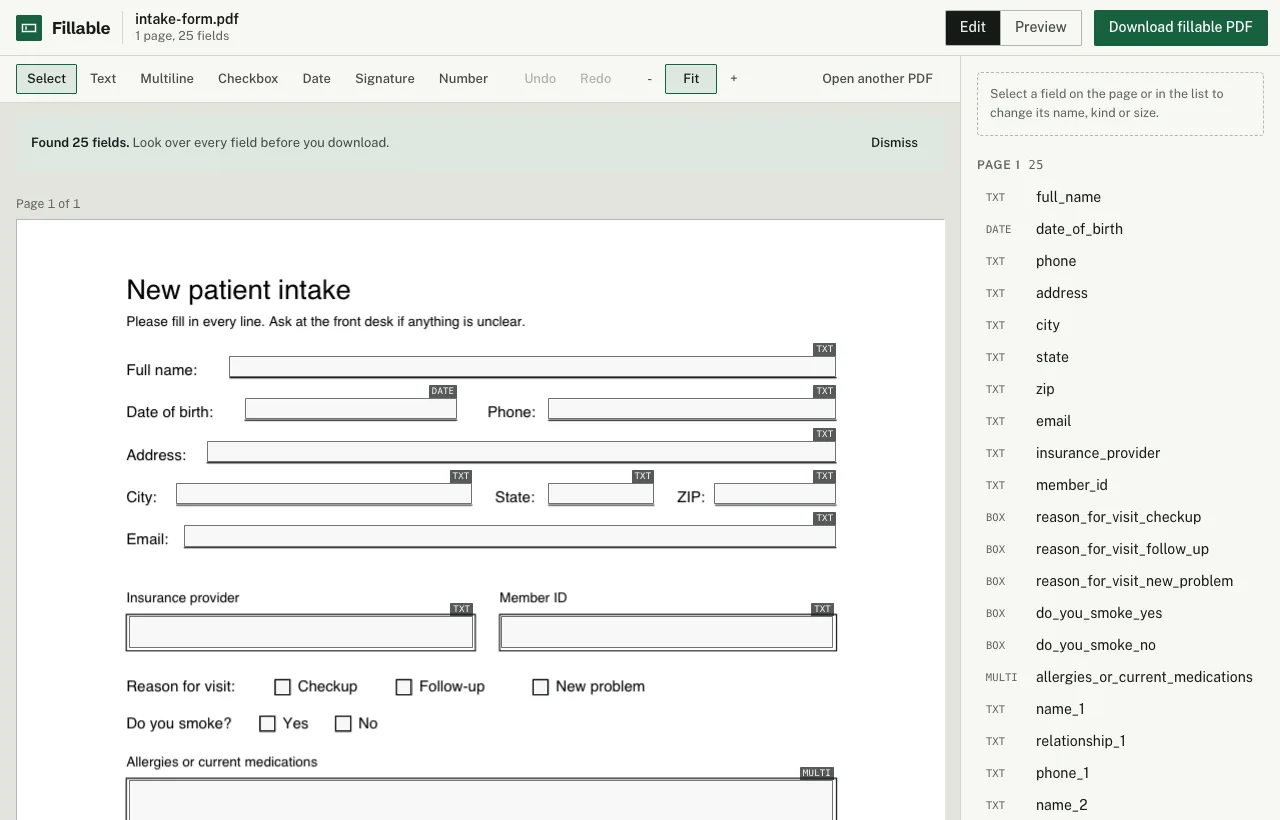
Fillable finds the lines, boxes and checkboxes in your PDF in the browser, lets you fix them, and gives you back a real fillable PDF. Page 1 is free to download (with a small "Made with Fillable" line at the bottom), so you can try it in your own PDF reader. The whole form without that line is $4, once. No account, no subscription.
Make your form fillable