Guide
How to make a PDF fillable without Acrobat
Updated 11 October 2026
Short answer: open the PDF in LibreOffice Draw (free), turn on the Form Controls toolbar, draw a field over each blank, then use File > Export as PDF with Create PDF form ticked. It works, but you place every field by hand. If you'd rather not, a tool that detects the fields does most of it for you.
What "fillable" actually means
A fillable PDF has form fields (the PDF spec calls them AcroForm fields) placed over the page: text boxes, checkboxes, a signature box. Anyone can click into them in Acrobat Reader, a browser or most phone apps, type, tab to the next one and save. A flat PDF only has the drawing of the lines and boxes. Typing a note on top of it in a viewer adds an annotation for you, but it doesn't turn the form into one other people can fill.
Method 1: LibreOffice Draw (free, Windows, Mac and Linux)
- Open the PDF in Draw. Install LibreOffice from libreoffice.org, then File > Open your PDF. Draw imports each page as editable shapes and text. Fonts you don't have installed get substituted, so compare the result with the original before you go on. A scanned PDF opens as one image per page, so nothing moves.
- Show the form tools. View > Toolbars > Form Controls, then switch on Design Mode in that toolbar.
- Draw the fields. Pick Text Box and drag over each blank line, Check Box for each square. Zoom in so the edges sit on the printed lines.
- Name each field. Right-click a field and open Control Properties. The Name becomes the field's name in the PDF; "Date of birth" is more useful later than "TextField3".
- Export. File > Export as PDF, and on the General tab tick Create PDF form. The Submit format only matters if you add a submit button; leave it as it is.
- Test it. Open the new PDF in a reader, click the first field and press Tab through the rest.
Two things to know. Some users on LibreOffice's forum report that fields already in a PDF are lost when Draw saves it again, so start from the flat form. And it takes a while: the one-page intake form further down has 25 blanks, each drawn and named by hand.
Method 2: start the form in LibreOffice Writer
If you're designing the form yourself rather than converting one, build it in Writer and add the same form controls there, then export with Create PDF form. Microsoft Word and Google Docs can't do this step: their PDF export keeps the layout but doesn't turn content controls or underlines into PDF form fields, which is what Microsoft's own Q&A forum answers say too.
Method 3: an online PDF editor
Web editors such as Sejda let you upload the PDF and place text fields, checkboxes, radio buttons, dropdowns and signature boxes, and Sejda's form tool has an auto-detect button. The free tier has hourly and page limits; a 7-day web pass is $5, paid once. The file is uploaded to their servers; Sejda says files are deleted after 2 hours. Check the current limits before relying on them.
Method 4: Fillable
This is the tool I built for exactly this job. You drop the PDF in, it finds the blanks, boxes and checkboxes in your browser and names them from the labels next to them, you fix what it got wrong, and you download the fillable PDF.
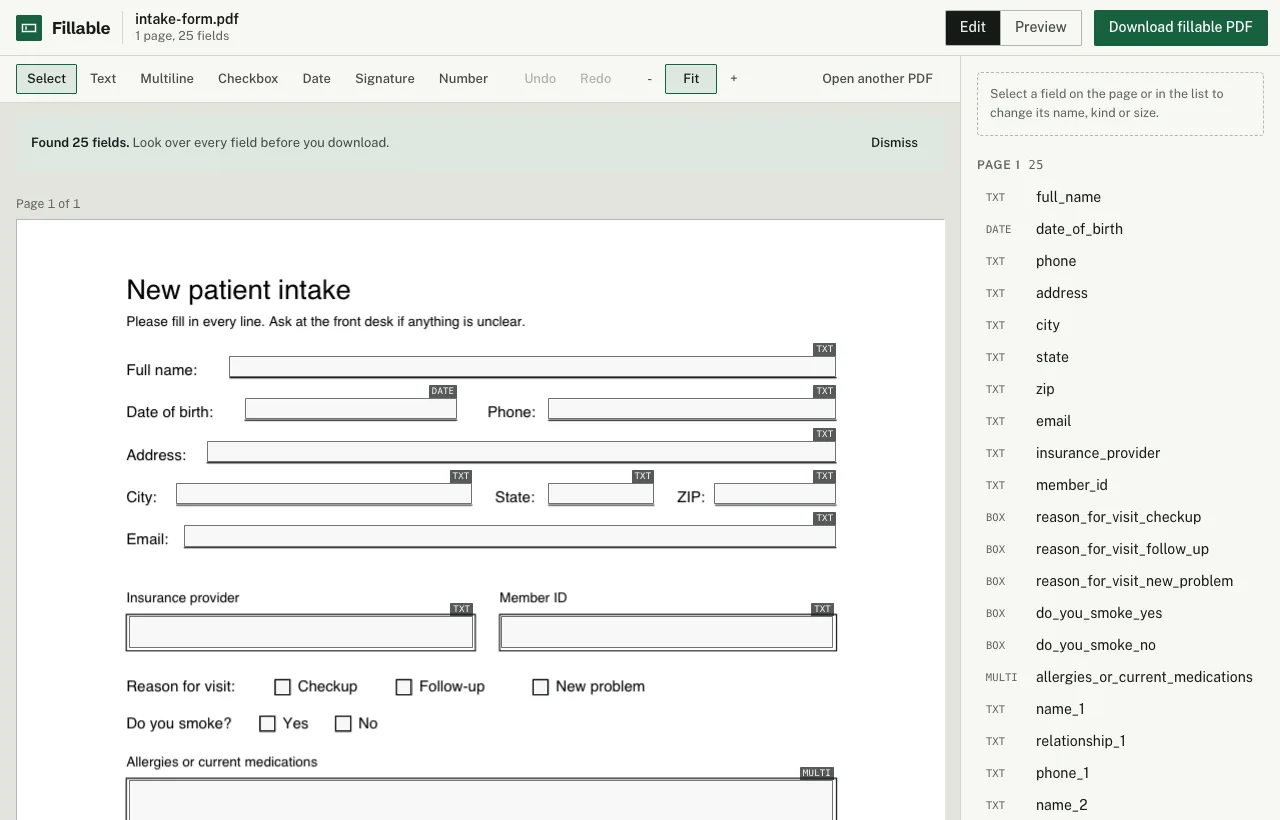
- Open fillable.getnobody.org and choose the PDF (up to 20 MB and 30 pages). It isn't uploaded while you edit.
- Check the outlined fields. Drag to move, pull a corner to resize, rename on the right. Uncertain ones are dashed and listed first.
- Press Preview and type into the form to see how it behaves.
- Download page 1 free (it has a small "Made with Fillable" line at the bottom) and try it in your own reader. When it's right, $4 gets you the whole form without that line.
Which one to use
| Method | What it costs | Finds the fields for you | Where your PDF goes |
|---|---|---|---|
| LibreOffice Draw | Free | No, you draw each one | Stays on your computer |
| Online editor (Sejda) | Free with hourly and page limits, or $5 for 7 days | Has an auto-detect button | Uploaded; deleted after 2 hours, per Sejda |
| Acrobat Standard or Pro | From US$14.99 a month on an annual plan, US$24.99 month to month | Yes, Prepare a Form | Opened in the Acrobat app |
| Fillable | Page 1 free, $4 per form for the whole file | Yes, in your browser | Detection in your browser; sent once at download, not stored |
If you make forms every week, Acrobat's subscription can pay for itself; see the Acrobat comparison. For a form or two, LibreOffice costs nothing but time, and Fillable costs $4 and a few minutes of checking.
Fillable finds the lines, boxes and checkboxes in your PDF in the browser, lets you fix them, and gives you back a real fillable PDF. Page 1 is free to download (with a small "Made with Fillable" line at the bottom), so you can try it in your own PDF reader. The whole form without that line is $4, once. No account, no subscription.
Make your form fillableSources
- LibreOffice Help: PDF export, General tab (Create PDF form)
- Ask LibreOffice: PDF forms are lost after Save As
- Microsoft Q&A: Word form fields and content controls in PDF export
- Sejda: PDF forms and Sejda pricing
- Adobe Acrobat pricing (US)
More: scanned forms, which field type to use.