Guide
How to convert a scanned form into a fillable PDF
Updated 11 October 2026
Short answer: a scan is one image per page, so the fields have to be placed over the picture. Do it by hand for free in LibreOffice Draw, or use a tool that finds the lines and boxes in the image (Acrobat's Prepare a Form, Fillable) and then check every field it made. OCR alone won't do it: it makes the text searchable, not fillable.
Start with a clean scan
- Flat and straight. A page fed through a scanner beats a phone photo. If you only have a photo, crop it to the page edges and keep it square on.
- 200 to 300 dpi, grayscale or black and white. Enough for thin lines to survive; colour at 600 dpi only makes the file huge.
- One PDF, pages in order. Most tools work page by page, and a form split across files has to be done twice.
What a tool can find in a scan
Without text, software still sees shapes: long dark lines, small squares, big empty rectangles. Each one maps to a field kind.
Free: draw the fields over the scan in LibreOffice
- Open the scanned PDF in LibreOffice Draw (File > Open). Each page comes in as an image, so the layout can't shift.
- View > Toolbars > Form Controls, and switch on Design Mode.
- Drag a Text Box over each blank and a Check Box over each square. Zoom to 200% so the fields line up with the printed lines.
- Right-click each field, open Control Properties and give it a name.
- File > Export as PDF, tick Create PDF form on the General tab, and export.
It's accurate because you place every field yourself, and it's slow for the same reason.
Do I need OCR first?
No. OCR (text recognition) turns the picture of words into selectable, searchable text. It doesn't create form fields. Adobe says Acrobat's Prepare a Form tool can work on a scan of a paper form and detect fields on it; independent guides add that the result needs checking, especially on complicated forms. Fillable doesn't do text recognition at all: it finds the lines and boxes in the image, so on a scanned page the fields start without names and you type them in.
With Fillable
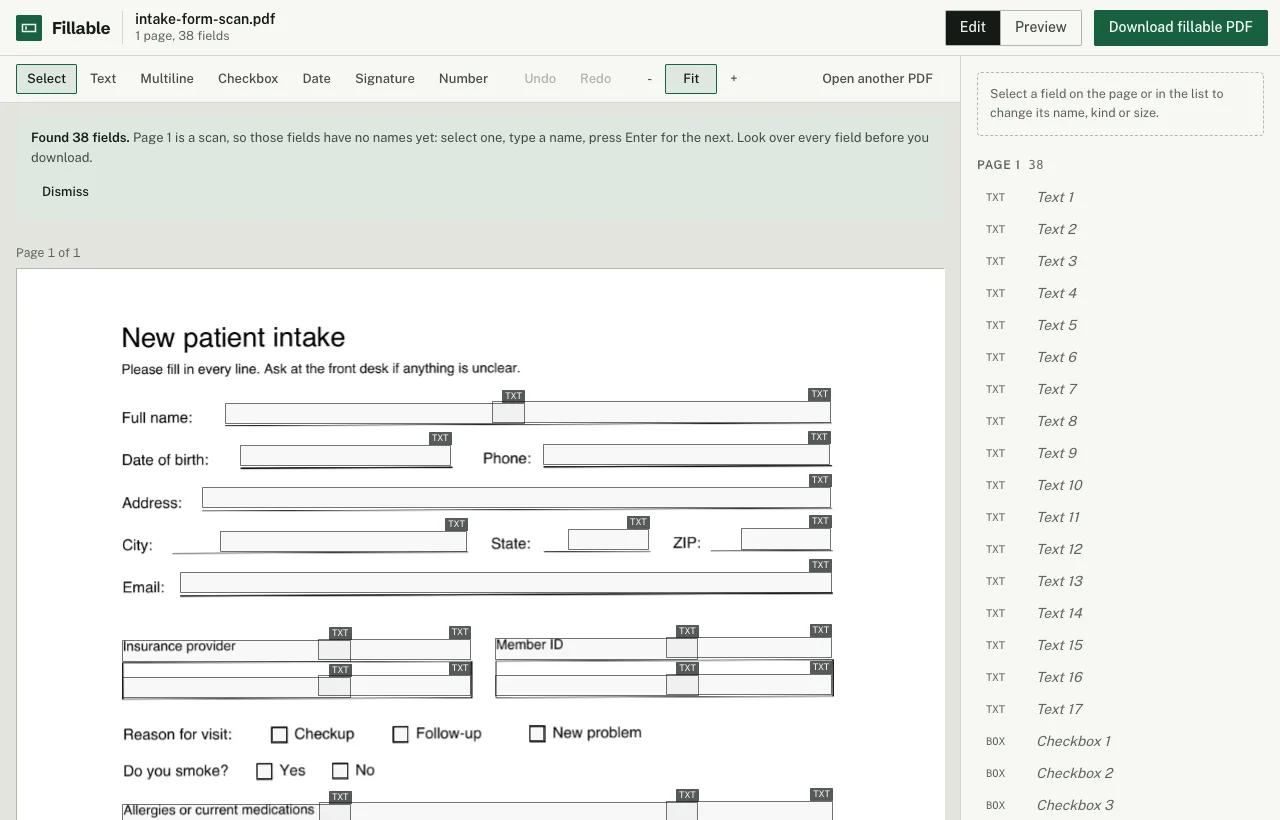
- Open fillable.getnobody.org and choose the scanned PDF (up to 20 MB and 30 pages). Detection runs in your browser and the file isn't uploaded while you work.
- Look over the outlines. Delete anything that isn't a blank, add what was missed from the toolbar (Text, Multiline, Checkbox, Date, Signature, Number).
- Name the fields: select the first, type a name, press Enter to move to the next.
- Download page 1 free and try it in your reader. It's the real fillable file with a small "Made with Fillable" line at the bottom. The whole form without the line is $4, once.
When it goes wrong
| Problem | Likely cause | Fix |
|---|---|---|
| Fields sit slightly above or below the lines | The page was scanned at an angle | Rescan straight, or nudge the fields; they only need to cover the blank |
| Checkboxes missing | Faint or very small squares | Add them by hand; rescanning darker helps |
| Text box over a label | A boxed label looks like an empty box | Delete that field |
| File too large to open | Colour scan at high resolution | Scan again in grayscale at 200 to 300 dpi |
| "Password protected" | The PDF is encrypted | Open it, print it to a new PDF, and use that |
Fillable finds the lines, boxes and checkboxes in your PDF in the browser, lets you fix them, and gives you back a real fillable PDF. Page 1 is free to download (with a small "Made with Fillable" line at the bottom), so you can try it in your own PDF reader. The whole form without that line is $4, once. No account, no subscription.
Make your form fillableSources
- Adobe Help: convert documents to PDF forms
- Clemson University: PDF forms (notes on automatic field detection)
- LibreOffice Help: PDF export, General tab
More: make any PDF fillable without Acrobat, PDF field types.